EFS Classroom · User Guide

Getting Started with EFS Classroom

Your complete guide to online English learning — from signing up to using every feature with confidence.

StudentsLive classes + independent practice
MembersSelf-study · company programmes
Company AdminsTeam management & reports

Features marked STUDENT MEMBER ADMIN are role-specific. Everything else applies to all users.

classroom.english-forsuccess.com
What's in this guide

Table of Contents

💡

This guide covers all three roles. Skip to the section that matches your role using the page numbers above. If you are a student, pages 3–11 are for you. If you are a member of a company programme, pages 3–8 and 13–14 are most relevant. Company administrators should also read pages 16–17.

Role legend used throughout this guide:  BOTH = all users  ·  STUDENT = students only  ·  MEMBER = company members only  ·  ADMIN = company administrators only

For everyone

Creating Your Account BOTH

EFS Classroom is invite-only. You'll receive a personal invitation by email from your teacher or company administrator.

1
Check your email for an invitation
2
Click the link in the email
3
Set your password
4
Complete your profile
💡

Check your spam or junk folder if you don't see the invitation. The link expires after 7 days — contact your teacher if it has expired.

Onboarding — setting up your profile

1 · Your English Level

Choose from A1 (Beginner) to C2 (Proficient). Not sure? Take the built-in placement test — 30 questions, about 10 minutes, result saved automatically.

2 · Your Profile

Add your profession or job title and date of birth (optional, used for birthday wishes from your teacher). Update anytime in Settings.

Students — 2 steps

  • Level selection (with optional placement test)
  • Profile: profession and date of birth

Members — 4 steps

  • Welcome overview of the platform
  • Level selection and placement test option
  • Profile: job title and date of birth
  • Notification preferences preview
For everyone

Installing the App (PWA) BOTH

EFS Classroom is a Progressive Web App. Install it on your phone or computer and use it like a native app — no app store required.

⚡
Faster access
Launches from home screen instantly
🔔
Notifications
Practice reminders and homework alerts
📱
App-like feel
Full-screen, no browser bar

🤖 Android (Chrome)

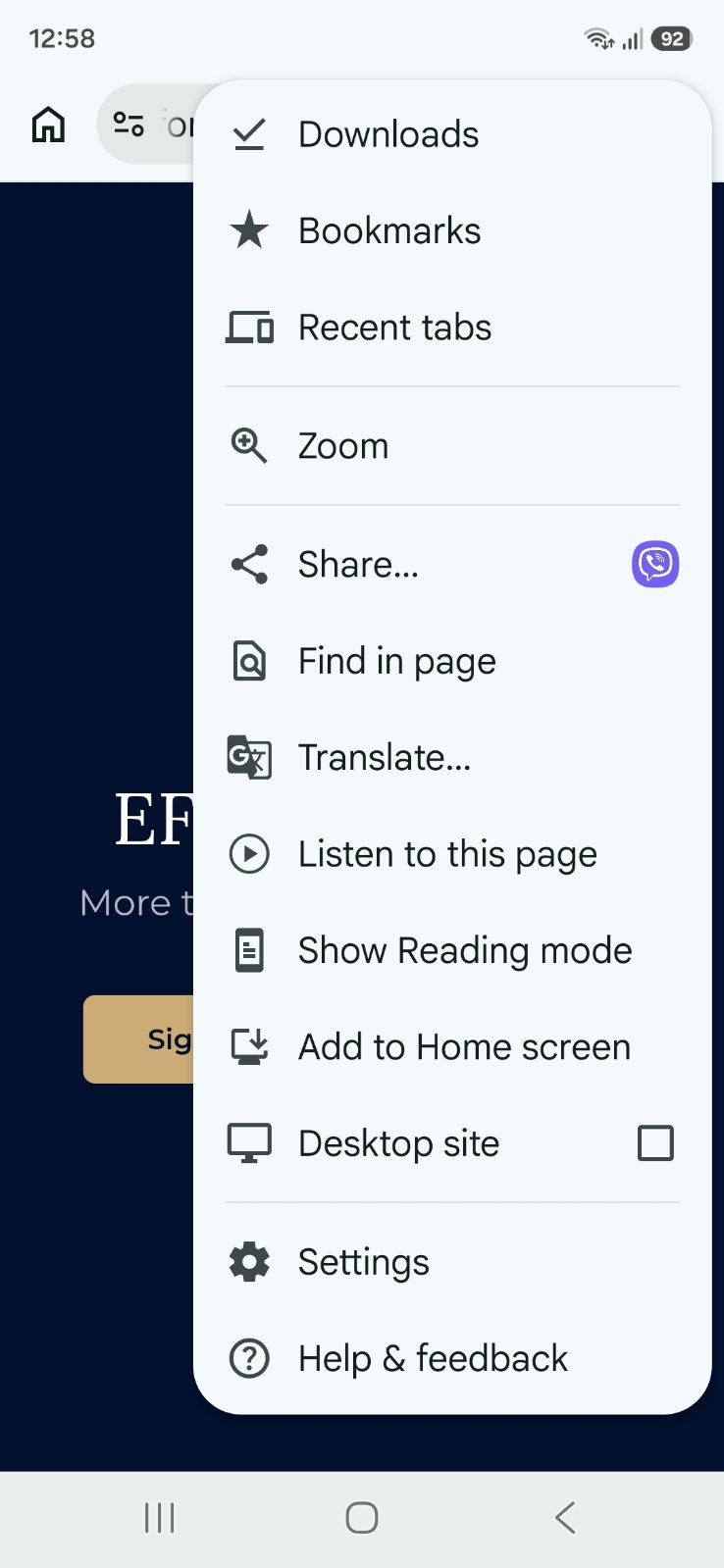
  1. Open classroom.english-forsuccess.com in Chrome
  2. Tap the three-dot menu (⋮) in the top-right corner
  3. Tap Add to Home Screen
  4. Confirm by tapping Install
Android Chrome install prompt

🍎 iPhone / iPad (Safari)

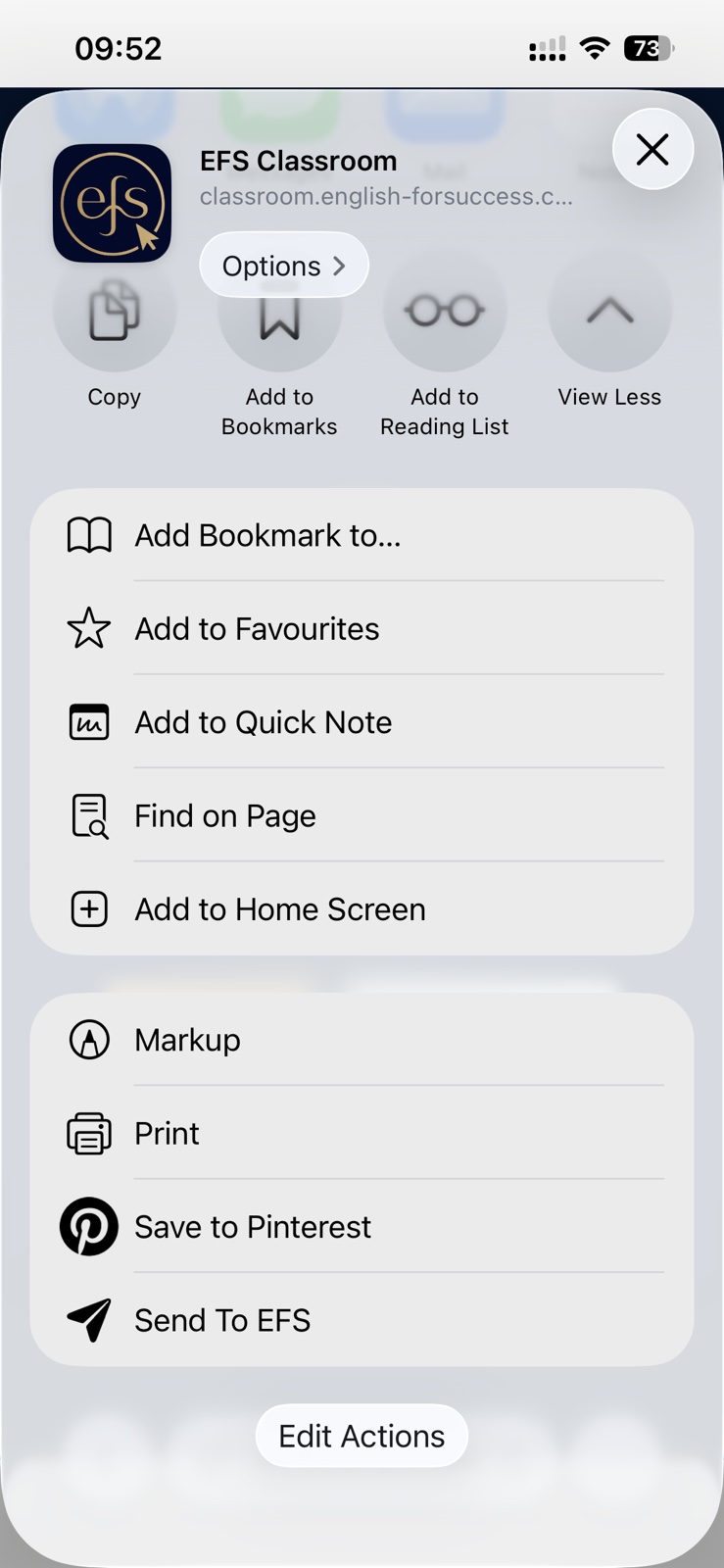
  1. Open the site in Safari (not Chrome)
  2. Tap the Share icon at the bottom
  3. Tap Add to Home Screen, then Add
iOS Safari share sheet

💻 Desktop (Chrome / Edge)

Look for the install icon in the browser address bar (a small monitor with a down arrow). Click it and confirm. You can also find an install option in Settings on the platform.

🔔

After installing, allow push notifications when prompted — this enables homework alerts, correction notifications, and daily practice reminders.

For everyone

Your Dashboard — Two Experiences

Students and Members have different dashboards. Here is exactly what each role sees.

🎓 Student Dashboard STUDENT
  • Enrolled classrooms with a quick-join button for live sessions
  • Your teacher's profile — name, bio, and specialties
  • Progress: sessions attended, vocabulary words, pronunciation items
  • Homework badges — red for pending, green for a new teacher correction
  • Daily streak widget and achievements cabinet
  • Certificate milestone progress (3, 6, 12, 18, 24 months)
💼 Member Dashboard MEMBER
  • Company membership card with your programme name
  • Daily streak counter and total practice sessions
  • Saved words count from your notebook
  • Industry tiles — Professional English, HR Challenge, or Housekeeping Challenge (only what your company has access to)
  • No classrooms, no homework — Members are self-study only

Navigation — sidebar items by role

For everyone

Practice Games

All games use spaced repetition — the more you practise, the smarter the system gets at reviewing what you need most.

Core games BOTH

📖

Grammar Lessons

Structured lessons with concept explanations and exercises. Work at your own pace.

🃏

Vocabulary

Swipe flashcards right (Easy) or left (Hard). Three sub-modes: Flashcards, Idioms, and Spelling Pairs. Hard cards reappear sooner.

✏️

Grammar Practice

Fill-in-the-blank, multiple choice, and error-correction exercises. Wrong answers return at the end of your session.

🎤

Pronunciation

Record yourself saying a word and receive an accuracy score. Each word shows IPA notation and a Serbian translation.

Industry Challenges MEMBER

Available when your company programme includes industry-specific English. Each challenge is built around your field — the vocabulary, scenarios, and situations you actually encounter at work. New challenges are added over time as the content library grows.

Every industry challenge follows the same progression logic:

🏭

Which challenge you see depends on your company's programme. Not all members see the same content — it is configured by your company administrator together with EFS.

Hearts, Streaks & Leaderboard

💛 Hearts BOTH

  • +1 heart per correct answer
  • Bonus hearts every 5 and 20 correct
  • Hearts are a score — never spent

🔥 Streak BOTH

  • Practise any game daily to keep it going
  • Missed a day? Use a streak freeze
  • Earn bonus freezes by playing multiple games in one day

🏆 Leaderboard

  • Students — global ranking of all opted-in students, by weekly hearts, on the Practice page
  • Members — company-only ranking of colleagues, on the Leaderboard page
  • Opt in via Settings — only name and score visible to others
For everyone · available when access is granted

Speaking Space BOTH

Speaking Space is an async speaking club — a space to practise speaking English at your own pace, respond to structured lesson prompts, and engage with your group through voice messages, text, reactions, and polls. It appears in your sidebar above Practice once your teacher or admin enables it.

🔓

Speaking Space access is granted by your teacher (students) or your company administrator (members). If you don't see it in your sidebar, ask them to enable it for you.

What's inside

📋 Lesson cards

Each session is built around a structured card with background reading, discussion questions, a speaking task, key vocabulary, and an idiom of the day. New lessons are scheduled by your teacher.

🎤 Voice messages

Record your response to a question or speaking task and share it with the group. Listen to others' recordings and adjust playback speed if needed.

💬 Text chat

Type written responses, reply to voice or text messages, and keep the conversation going between sessions.

❤️ Reactions & polls

React to any message with emoji (quick reactions or a full picker with 18 options). Teachers can post polls to warm up a topic or gauge group opinion before a speaking task.

📁 Past discussions

All previous lesson discussions are saved. Each past lesson has its own collapsible section so you can revisit vocabulary, re-read responses, or catch up if you missed a session.

Tips for getting the most out of it

For everyone

Notifications & Settings BOTH

🔔 Practice & homework notifications

🌅 Daily reminder BOTH
A nudge at your preferred time if you haven't practised yet today
🔥 Streak at risk BOTH
Evening alert when your streak is about to break
📚 Post-class nudge STUDENT
Practice reminder the morning after a live session
👋 Comeback nudge BOTH
Friendly reminder after 5 or more days away from practice
📝 New homework STUDENT
Sent immediately when your teacher assigns work — not throttled by daily limit
✅ Correction received STUDENT
Instant alert when your teacher responds to your homework

🎙 Speaking Space reminders BOTH

If you have Speaking Space access, a separate Engagement reminders toggle appears in Settings. This sends nudges when a new lesson is scheduled or when the group discussion is active. It is independent of your practice reminders — you can have one on and the other off.

⏰

Go to Settings → Notifications to set your preferred reminder time. The platform analyses your practice history weekly and gradually adjusts the timing to match when you actually practise.

⚙️ Settings overview

Common settings BOTH

  • Change your password
  • Set your notification reminder time
  • Enable or disable push notifications
  • Toggle Speaking Space reminders (if you have access)
  • Toggle sound effects in games
  • Install or reinstall the app
  • Restart the platform welcome tour
  • Access the bookmarklet (always available here)

Student-only STUDENT

  • Global leaderboard opt-in
  • Download milestone certificates (3/6/12/18/24 months)

Member-only MEMBER

  • Company leaderboard opt-in
  • Company membership information
🎓
Student section
For Students

The next two pages cover features exclusive to students — Class Notes, AI enrichment, Homework, and the Library topic wishlist.

Students

The Virtual Classroom STUDENT

Live sessions happen inside the virtual classroom — a full video room with tools designed for language learning. Your teacher opens the session and you join with one click from your Dashboard.

🚪 Joining a session

  1. A Join button appears on your Dashboard when your teacher starts
  2. Allow your camera and microphone when prompted
  3. Wait briefly in the waiting room — your teacher will admit you

📹 Video, audio & chat

🖥 What your teacher can show on stage

  • Screen share — their screen or a browser tab
  • Materials — PDFs displayed in sync for everyone
  • Videos — YouTube, Vimeo, Drive — synced playback
  • Grammar lessons — interactive exercises for in-class work
  • Whiteboard — shared drawing canvas (you can draw too; teacher can lock tools)

📋 Class Notes — live

Your teacher's notes appear on your screen in real time as they type — vocabulary, corrections, pronunciation flags, and reminders. No need to write it all down yourself.

After class, everything is saved to your Class Notes page with AI enrichment added automatically.

Students

Class Notes & AI Enrichment STUDENT

After every lesson, everything your teacher noted during class is saved here automatically, organised by session. Four tabs:

What your teacher saves for you

  • Vocabulary — new words from the lesson, enriched with AI (IPA, definition, example, translation)
  • Pronunciation — words flagged for you to practise
  • Corrections — your mistakes with the correct form and explanation
  • Useful Links — websites and resources shared in class

What you add yourself

  • My Notes — a personal text area in the live classroom, auto-saved every second while class is running. Find it later under the Notes tab, grouped by session date.
🌐

Save words from any website using the bookmarklet — covered in the Member section (page 14), but available to students too via Class Notes and Settings.

✨ AI Enrichment — automatic definitions and IPA

After each session your teacher can run one-click AI enrichment on all vocabulary. By the time you open Class Notes, your words are already enriched with:

📣 IPA pronunciation 📖 Full definition ✍️ Example sentence 🇷🇸 Serbian translation

Corrections are also AI-reviewed for clearer explanations. The enrichment runs automatically — you don't need to do anything.

🎓 Student Certificates

PDF certificates are awarded automatically at class milestones. Download them anytime from Settings → My Certificates.

3
months · 24 classes
6
months · 48 classes
12 · 18 · 24
months · 96 / 144 / 192 classes
Students

Homework & Library STUDENT

📝 Homework

A red badge on the Homework sidebar item means there is something waiting for you.

📚 Library — materials and lesson topic wishlist

The Library collects every file and link your teacher has shared in class, plus files from homework — all searchable in one place.

Inside the Library you'll also find topic tabs (Conversation, Business English, Grammar, and others) — browsable lists of lesson topics. Hover over any topic and a ♡ heart appears on the right.

How to heart a topic

  • Go to Library in the sidebar
  • Open any topic tab — Conversation, Business, Grammar, etc.
  • Hover over a topic title — a ♡ heart appears on the right
  • Click it to mark it as a favourite — the heart turns red
  • Click again to remove it from your wishlist

What your teacher sees

  • During a live session, the classroom panel shows each student's "Favourite topics" list
  • Your teacher can see every topic you've hearted and tick them off once covered in class
  • Covered topics show a green tick on your side once done
💡

Think of it as your personal wishlist — heart a topic and your teacher will know to cover it.

💼
Member section
For Company Members

The next two pages cover features exclusive to members — My Notebook, the company Leaderboard, and the web bookmarklet for saving vocabulary.

Members

My Notebook & Leaderboard MEMBER

My Notebook is your personal vocabulary and notes hub — self-curated rather than teacher-fed.

📖 Saved Words — where do they come from?

🃏

From practice games

Any flashcard you swipe Easy, or any vocab card in an Industry Challenge — saved automatically.

🎤

From Pronunciation

Words you score in Pronunciation are added automatically, with IPA and translation already filled in.

🌐

From the web

Use the bookmarklet (next page) to save any word you find while browsing — one click.

✨ AI Enrichment

When 5 or more saved words are missing definitions, an Enrich words button appears. One click fills in definition, example sentence, part of speech, and Serbian translation for all of them at once.

📝 Notes to Self

The Notes tab has a single freeform text area for anything — goals, observations, questions for your teacher.

⚠️

Notes do not save automatically. Always click the Save notes button before navigating away or your changes will be lost.

🏆 Leaderboard MEMBER

The Leaderboard page ranks all opted-in members at your company by hearts earned this week and all-time balance. Opt in via Settings — only your name and score are visible to others.

🌍

Students have a separate global leaderboard on their Practice page, ranking all opted-in students worldwide by weekly hearts — not visible to members.
Members · also available to students via Class Notes & Settings

Save Any Word From the Web BOTH

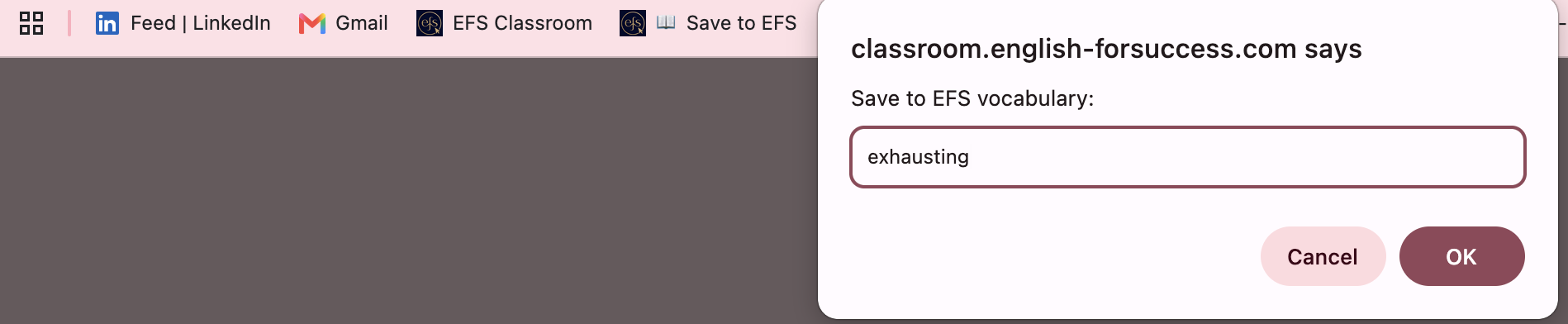
Reading an article and don't know a word? The EFS bookmarklet saves it to your vocabulary in one click — no tab switching, no copy-pasting. Most people don't know this exists.

Where to find the "📖 Save to EFS" button

How to install it — desktop only

💻

Desktop only. Mobile browsers don't have a bookmarks bar. On your phone, save words by marking flashcards Easy in practice games instead.

  1. Show your bookmarks bar: Ctrl+Shift+B on Windows or Cmd+Shift+B on Mac in Chrome
  2. Go to the Saved Words page or Settings and find the gold "📖 Save to EFS" button in the banner
  3. Drag that button up into your bookmarks bar — like dragging a file. No extension needed.
⬅ ➡ https://www.bbc.com/news/article-example 📖 Save to EFS
…The central bank's decision to raise interest rates by 50 basis points surprised markets yesterday…

How to use it

  1. Go to any website — a news article, LinkedIn post, or dictionary
  2. Highlight the word or phrase you want to save
  3. Click "📖 Save to EFS" in your bookmarks bar
  4. A small popup confirms the save, then closes after 2 seconds
💡

Didn't select text? The bookmarklet asks you to type the word into a prompt box instead.

🔒

Not logged in? It will ask you to log in first — your word is saved automatically right after.

Bookmarks bar with Save to EFS bookmarklet
🏢
Company Administrator section
For Company Administrators

The next two pages cover tools available only to company administrators — managing your team and viewing engagement reports and analytics.

Company Administrators

Team Management ADMIN

The Team page gives you a full overview of your company's members and the tools to manage who has access to the platform.

👥 Your team at a glance

The Members tab shows every active member in your company with:

➕ Requesting to add a member

You cannot add members directly — all changes go through EFS to ensure correct setup. To add a new team member:

  1. Go to Team → Members tab → click Request to Add Member
  2. Enter the person's email address and any notes (e.g. their department or start date)
  3. Submit the request — an EFS administrator will review it and send the invitation
  4. Track the status of all requests in the Requests tab
📧

The new member will receive a personal invitation email from EFS Classroom. The invitation link expires after 7 days — if they miss it, submit a new request.

➖ Requesting to remove a member

To remove a team member who has left the company or no longer needs access:

  1. Go to Team → Members tab → click Request to Remove Member
  2. Enter the person's email address and a brief reason
  3. Submit — an EFS administrator will revoke access promptly
⚠️

Members whose access expires show an Expired badge. Their data is retained but they can no longer log in. Contact EFS to renew their access or remove them from the list.

🎙 Speaking Space access

If your company programme includes Speaking Space, members with access show a purple Speaking Space badge in the team list. To request access for a specific team member, include a note in the Add Member request or contact your EFS account manager.

Company Administrators

Reports & Analytics ADMIN

The Reports page gives you a clear picture of how your team is engaging with the platform — without requiring any manual data collection.

📊 What you can see

🔥
Streak data per member — current and longest
📚
Total practice sessions completed
🎯
Grammar accuracy scores

Each member has an engagement score (0–100) calculated from streak, sessions completed, and accuracy. This gives you a quick health check of who is actively practising and who might need a nudge.

📅 Date range filters

📄 Exporting reports

PDF report

  • Covers overall team engagement and per-member summaries
  • Includes accuracy donut chart with correct/incorrect breakdown
  • Generated directly in the browser — click Export PDF and save
  • Professional layout suitable for sharing with HR or management

Excel report

  • Multi-sheet workbook: Overview sheet + one sheet per member
  • Raw data: sessions, streaks, accuracy, words saved, engagement score
  • Click Export Excel — downloads as .xlsx file immediately
  • Suitable for further analysis or integration with internal reporting
📬

We recommend running a monthly report and sharing it with your HR or L&D team. Consistent practice data is a strong indicator of training ROI, and the engagement score makes it easy to spot members who may need extra motivation or support.